Sleep Mode Isn’t Safe: How Attackers Exploit Systems


The Myth: “Sleep Mode = Safe Mode”
You close your laptop lid, hear that satisfying click, and walk away thinking your data is secure. After all, the screen’s locked, right? Wrong.
That convenient “sleep mode” millions rely on daily isn’t the security blanket we think it is. While your device appears dormant, it’s actually maintaining a treasure of sensitive information in active memory; encryption keys, passwords, cached credentials, and open documents all sitting vulnerable and accessible to someone who knows where to look.
The harsh truth? Convenience is the new vulnerability and even your computer’s nap time isn’t private.
What Actually Happens: Sleep vs. Hibernation vs. Shutdown

Before getting into the attacks, let’s understand what’s happening under the hood.
Sleep Mode (S3 State)
When you put your computer to sleep:
RAM stays powered and maintains all active data
CPU and other components power down
System can wake up in seconds
All encryption keys remain in volatile memory
Available on: Windows, macOS, Linux
Hibernation (S4 State)
During hibernation:
RAM contents are written to disk (hiberfil.sys on Windows, swap on Linux)
Complete power-off of all components
Longer wake-up time as data loads back from disk
Memory snapshot persists on storage
Primarily Windows feature; macOS uses hybrid sleep
Full Shutdown
All memory cleared
All data purged from RAM
Complete power cycle required
Most secure but least convenient
The problem? Most users default to sleep mode for quick access, unknowingly leaving a gaping security hole.
Why Memory Matters
Modern computers keep sensitive data in RAM during sleep mode for performance. This includes:
Full-disk encryption keys (BitLocker, FileVault, LUKS)
Password manager master keys
SSH private keys and authentication tokens
Cached browser passwords and session cookies
Open document contents (financial data, confidential files)
VPN credentials and network authentication
In sleep mode, this data remains electrically charged in memory chips for minutes to hours, even after power loss. This persistence is what attackers exploit.
Attack Vector #1: Cold Boot Attacks
Cold boot attacks exploit the physical property of RAM data doesn’t vanish instantly when power is cut. Memory chips can retain data for seconds to minutes depending on temperature.
How It Works (Just a High-Level overview)
An attacker with physical access can:
Force the sleeping computer into a controlled state
Quickly reboot into a specialized operating system (from USB)
Dump raw memory contents before data degrades
Analyze the memory dump to extract encryption keys
Use recovered keys to decrypt the entire drive
The Temperature Trick
Cooling RAM with compressed air or freeze spray extends data retention from seconds to several minutes, giving attackers more time to extract data.
Princeton’s Foundational Research
The landmark 2008 study by researchers at Princeton University demonstrated cold boot attacks against BitLocker, FileVault, and TrueCrypt. They successfully recovered full encryption keys from sleeping laptops, fundamentally changing how we view memory security.
Reference: Cold Boot Attacks
Attack Vector #2: DMA (Direct Memory Access) Attacks
DMA attacks exploit high-speed ports that allow external devices to directly access system memory bypassing the CPU and operating system entirely.
Vulnerable Interfaces
Thunderbolt/USB-C ports (most dangerous)
FireWire (older systems)
PCIe slots (desktop expansion cards)
ExpressCard (legacy laptops)
How It Works (Just a High-Level overview)
Attacker connects a malicious device to a Thunderbolt port while system sleeps
Device sends DMA read requests directly to RAM
Memory contents dump to the attacker’s device
No authentication or logging occurs — Account bypassed
Encryption keys extracted in seconds
The “Evil Maid” Scenario
An attacker with brief physical access (hotel room, coffee shop, office) can:
Plug in a device while you’re away
Extract memory in under 5 minutes
Leave no trace of the intrusion
Return later with full decryption capabilities
Security researcher Björn Ruytenberg disclosed “Thunderspy,” affecting millions of computers with Thunderbolt ports manufactured before 2019. The vulnerability allowed DMA attacks even on locked, sleeping systems to extract encryption keys.
Impact: All Thunderbolt-equipped laptops (Windows, Linux, some macOS) from 2011–2019 vulnerable.
-> Windows: Kernel DMA Protection introduced in Windows 10 (version 1803+) with compatible hardware.
-> macOS: Apple restricted DMA access starting with T2 Security Chip (2018+) and Apple Silicon (M1/M2/M3).
-> Linux: IOMMU support exists but requires manual configuration in most distributions.
Attack Vector #3: Hibernation File Exploitation
When systems hibernate, RAM contents are written to disk:
Windows: C:\hiberfil.sys
Linux: Swap partition or swapfile
macOS: /var/vm/sleepimage
These files contain the exact same sensitive data as RAM, but persist on disk even after wake-up.
Risk
Hibernation files can be copied offline
Forensic tools can extract keys at leisure
Even deleted hibernation files can be recovered using disk forensics
Cloud-backed systems may sync these files
FBI vs. Seized Laptops
In multiple documented cases between 2019–2024, law enforcement agencies have successfully extracted encryption keys from hibernation files on seized laptops that were in sleep or hibernation mode during confiscation. Systems that were fully shut down remained secure.
Source: Electronic Frontier Foundation (EFF) case documentation and court records from encryption-related investigations.
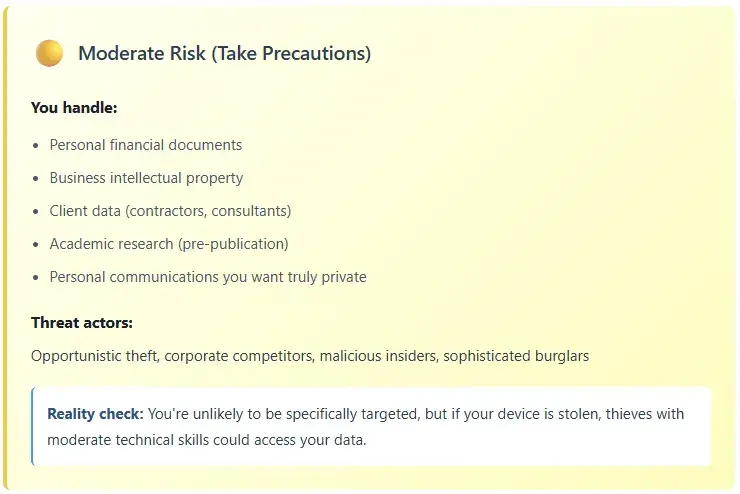
Who Actually Needs to Worry?



Countermeasures: Protecting Your System
Enable Full-Disk Encryption with Hardware Security
Windows:
Enable BitLocker with TPM 2.0
Settings → Privacy & Security → Device Encryption
Ensure "Require TPM startup key" is enabled
macOS:
Enable FileVault
System Settings → Privacy & Security → FileVault
On T2/Apple Silicon: automatic hardware protection
Linux:
Enable LUKS with TPM integration
Configure during installation or use:
cryptsetup luksFormat /dev/sdX
systemd-cryptenroll for TPM2 binding
2. Disable Sleep Mode for Sensitive Systems
Windows (PowerShell):
powercfg /change standby-timeout-ac 0
powercfg /change standby-timeout-dc 0
powercfg /hibernate off
macOS (Terminal):
sudo pmset -a hibernatemode 25
sudo pmset -a standby 0
sudo pmset -a autopoweroff 0
Linux (Terminal):
systemctl mask sleep.target suspend.target
hibernate.target hybrid-sleep.target
3. Enable DMA Protection
Windows:
Ensure Kernel DMA Protection: Settings → Privacy & Security → Core Isolation
Verify in System Information: Search “Kernel DMA Protection” should show “On”
macOS:
Automatic on T2 chip and Apple Silicon
Pre-2018 Intel Macs: No native protection (disable Thunderbolt in Boot options)
Linux:
Enable IOMMU in GRUB:
Edit /etc/default/grub
Add: intel_iommu=on (Intel) or amd_iommu=on (AMD)
sudo update-grub
4. Secure Boot Configuration
Enable Secure Boot in UEFI/BIOS
Set BIOS/firmware password
Disable unused DMA-capable ports in firmware
Enable TPM and configure measured boot
5. Physical Security Measures
Never leave devices unattended in sleep mode in public spaces
Use Kensington locks in high-risk environments
Enable “require password immediately” on wake
Consider USB port blockers for sensitive deployments
Implement tamper-evident seals for server rooms
6. Enterprise-Level Protections
Deploy Microsoft Intune or JAMF policies enforcing secure sleep
Monitor hibernation file access with SIEM tools
Implement network-based device authentication (NAC)
Use hardware tokens (YubiKey) for boot authentication
Regular security audits of power management policies
Rethinking Convenience
For most users handling non-sensitive data, sleep mode remains practical. But for anyone dealing with confidential information, students with research data, professionals with client files, activists in high-risk areas, the risks are real.
The attacks we’ve discussed aren’t theoretical. They’re proven, documented, and actively used by everyone from sophisticated threat actors to opportunistic thieves. The good news? With proper configuration and awareness, you can significantly reduce your attack surface.
The best lock in the world doesn’t matter if you leave the door open. Your computer’s “nap time” might be costing you more privacy than you think.
Quick Security Checklist
Immediate Actions (Do Today):

Monthly Maintenance:

For High-Security Environments:

If you’ve read this far and you’re still not sure what to do, here’s your answer: Enable BitLocker/FileVault/LUKS today, set password-on-wake, and call it done. That alone puts you ahead of 80% of users and protects against the vast majority of real-world threats. Everything else? Tune it to your actual threat model, not your imagined one. And maybe, just maybe consider shutting down that laptop tonight.


Comments